
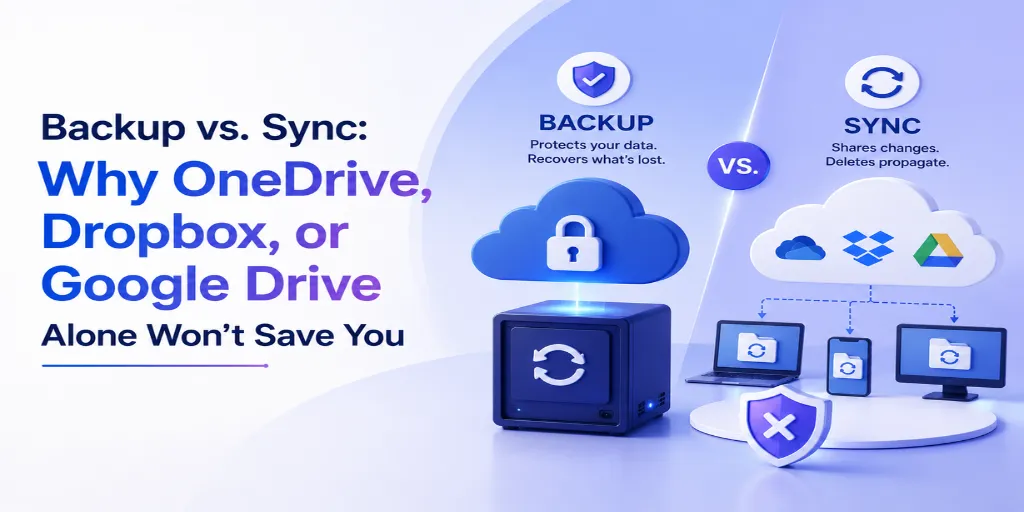
Sync services are brilliant at keeping files up to date across devices — and terrible at protecting you from the thing that actually causes most data loss. This guide breaks down exactly where sync ends and real backup begins, walks through a real ransomware scenario step by step, and shows you exactly how to check whether your own setup has this gap.
“It’s in the cloud” is doing a lot of heavy lifting.
Sync and backup solve completely different problems. Confusing one for the other is one of the most expensive assumptions in personal and business computing today.
“It’s in the cloud, so it’s backed up” might be the single most expensive assumption in modern computing. It sounds reasonable — your files are on OneDrive, or Google Drive, or Dropbox, so surely they’re protected. The problem is that sync and backup are built to solve two genuinely different problems, and the difference between them only becomes obvious at the exact moment you need it most.
This article walks through exactly what sync does and doesn’t do, shows a real ransomware scenario step by step so the gap is concrete rather than abstract, compares version history depth across the major sync tools, and gives you a checklist to determine whether your own setup has this exact vulnerability right now.
What sync actually does — and doesn’t do
Sync tools are built to solve one specific problem extremely well: keeping a file identical across every device you own. Edit a document on your laptop, and it shows up updated on your phone within seconds. This is genuinely useful, and it’s not something backup tools are designed to do quickly or automatically.
What sync tools are not designed to do is protect you from a bad change propagating everywhere. By design, sync tools treat any change — a deliberate edit, an accidental deletion, or a ransomware encryption — the same way: as an update that should be pushed to every connected device as fast as possible. There’s no built-in judgment about whether the “update” is actually something you wanted.
The core distinction
The ransomware scenario that exposes the gap instantly
The clearest way to understand the difference is to walk through what actually happens when ransomware hits a device that’s protected only by sync, with no separate backup layer.
Version history: sync’s shallow window vs. backup’s deep window
Most sync tools do offer some version history — but it’s typically shallower than people assume, and it isn’t immutable, meaning it can still be affected by the same issue that caused the problem in the first place.
| Sync Tool | Typical version history window | Immutable/WORM? | Cross-device sync |
|---|---|---|---|
| OneDrive | 30 days (Recycle Bin) typically, longer for Office file version history specifically | No — standard plans don’t offer immutable/WORM storage | Yes, via Known Folder Move |
| Google Drive | 30 days trash retention; version history varies by file type | No — not immutable by default | Yes, across devices with the Drive app |
| Dropbox | 30 days on free/standard plans, up to 180 days on paid “Extended Version History” | No — not immutable by default | Yes, strong cross-platform sync |
Compare this to a dedicated backup tool with immutable storage: version history commonly extends to 90 days or longer, and critically, older versions genuinely cannot be altered or deleted — not by an attacker, not by an accidental bulk-delete, and not by the sync process itself.
A real example: accidental deletion propagates too
Ransomware is the dramatic example, but the far more common scenario we see in support conversations is simpler: someone does a bulk delete or move of a folder, intending to clean up an old project — and doesn’t realize the folder was actually still needed. Sync propagates that deletion to every device within moments. By the time anyone notices, the files may already be past the sync tool’s short version history or recycle bin retention window.
The right mental model
The healthiest way to think about this isn’t “which one is better” — it’s that sync and backup answer two different questions. Sync answers: “is this file available on all my devices right now?” Backup answers: “if something goes wrong with the live version, can I get an earlier, unaffected copy back?” You genuinely want both answers to be yes, which means you want both tools, not one instead of the other.
How to layer sync and backup correctly
This isn’t complicated to set up once you understand the distinction. A reasonable, low-effort setup looks like this:
Self-check: is your “backup” actually just sync?
Frequently asked questions
Q: Isn’t OneDrive’s version history basically the same as backup?
Q: If I use both sync and backup, am I paying for the same thing twice?
Q: Can I just increase my sync tool’s version history window instead of adding backup?
Q: How do I know if my “backup” is actually just sync?
None of this means sync tools are bad — they’re excellent at the one job they’re built for. The mistake is expecting that job to also cover backup, which is a fundamentally different kind of protection. Once both are running together, you’ve closed the single most common gap we see in real data-loss incidents.