

Server Room to Cloud: Migrating Your On-Prem Backup Strategy
Moving off a legacy on-prem backup server is a bigger project than swapping software — here’s how to plan the migration without a gap in coverage, including an audit framework, a full migration timeline template, and what actually happens to your historical version history.
“Just point the new tool at the old drive” doesn’t work.
A backup migration deserves the same rigor as any other infrastructure change — an audit, a parallel-run window, and a real verification step before decommissioning anything.
Migrating off a legacy on-prem backup server often gets treated like any other software swap — install the new tool, point it at the same folders, done. In practice, this approach skips several steps that matter: confirming what the old system actually protected (versus what everyone assumed), handling historical version history correctly, and verifying the new system genuinely works before retiring the old one.
This article walks through a complete migration framework: an audit of your current system, a parallel-run approach, what happens to historical version history, and a realistic week-by-week timeline template.
Auditing what your on-prem system actually protects today
Before touching anything, get a clear, current picture of your existing setup — not what you assume it covers, but the literal configuration as it exists right now.
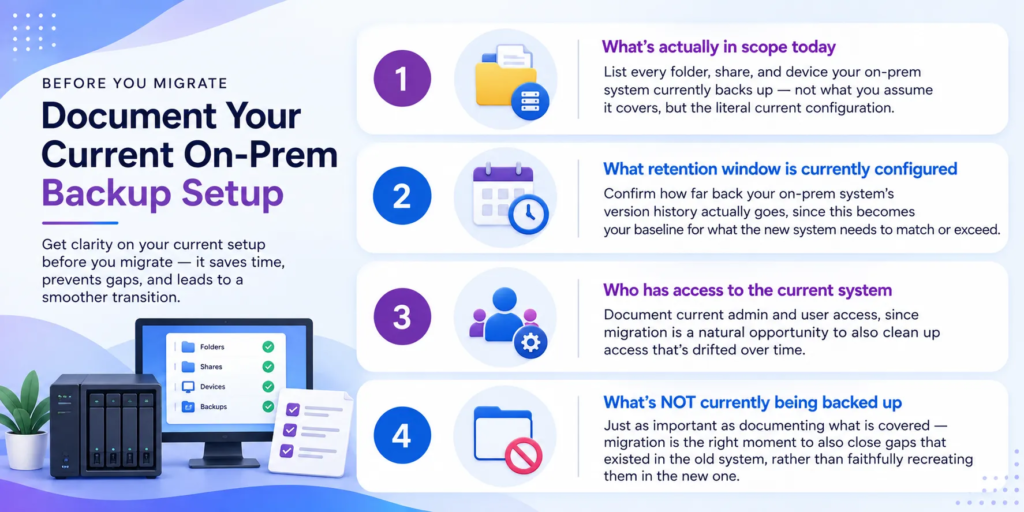
- What’s actually in scope today: List every folder, share, and device your on-prem system currently backs up — not what you assume it covers, but the literal current configuration.
- What retention window is currently configured: Confirm how far back your on-prem system’s version history actually goes, since this becomes your baseline for what the new system needs to match or exceed.
- Who has access to the current system: Document current admin and user access, since migration is a natural opportunity to also clean up access that’s drifted over time.
- What’s NOT currently being backed up: Just as important as documenting what is covered — migration is the right moment to also close gaps that existed in the old system, rather than faithfully recreating them in the new one.
Running parallel backups during the transition window
Rather than a hard cutover, run both the old and new systems actively backing up the same data for a defined transition window. This lets you catch configuration gaps or compatibility surprises while the old system is still available as a safety net, rather than discovering a problem only after the old system is already gone.
Don’t skip the parallel-run phase to save time
This is the single most common mistake in backup migrations — cutting over immediately without a verification window, then discovering a configuration gap only when an actual restore is needed. The few weeks a parallel run costs are dramatically cheaper than a real data loss incident during the transition.
Migrating historical version history — what’s possible, what isn’t
This is where expectations most often need adjusting during a migration.
A realistic migration timeline
Decommissioning the old system safely
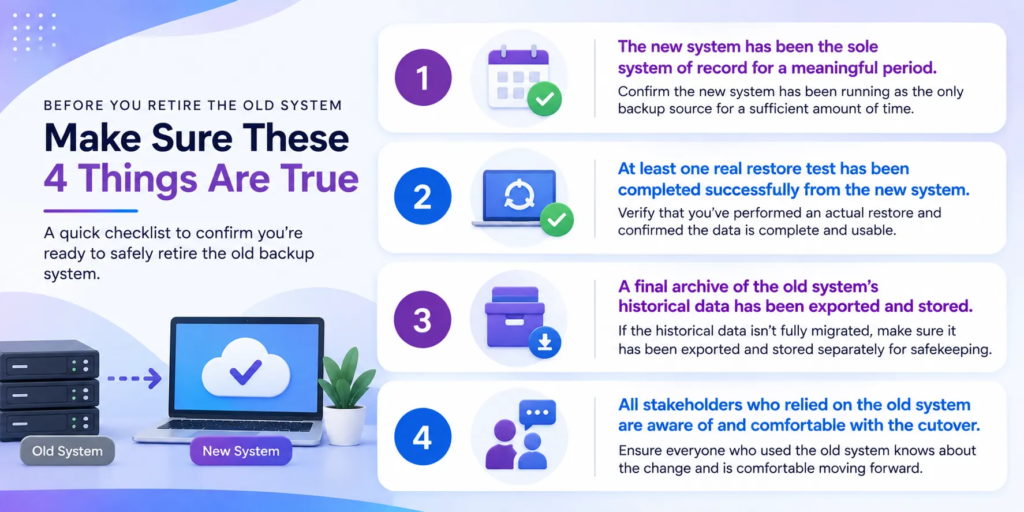
Only decommission after all of this is true
- The new system has been the sole system of record for a meaningful period.
- At least one real restore test has been completed successfully from the new system.
- A final archive of the old system’s historical data has been exported and stored separately, if not fully migrated.
- All stakeholders who relied on the old system are aware of and comfortable with the cutover.
Frequently asked questions
Q: How long should the parallel-run window realistically be?
At minimum, long enough to span one full backup and restore cycle relevant to your data — for most businesses, 2-4 weeks is a reasonable starting point, extended if your data involves longer-cycle compliance or audit needs.
Q: Can we skip the parallel-run phase to migrate faster?
We’d strongly advise against it. The parallel-run window is what actually catches configuration gaps or compatibility issues before you’re relying on the new system exclusively — skipping it trades a few weeks of caution for real risk during the transition.
Q: What if our historical version history genuinely can’t be migrated?
This is common, not a sign something went wrong. Consider exporting a final complete archive of the old system’s history before decommissioning, stored separately, so it’s still accessible if ever needed, even though it won’t be part of the new system’s active version chain.
Q: How do we decide when it’s actually safe to decommission the old system?
Only after the new system has been the sole system of record for a meaningful period (following your organization’s risk tolerance), with at least one successful real-world restore test completed from it specifically — not just a successful backup completion.
A backup migration is genuinely a project, not a quick software swap — treating it with the audit-plan-verify-decommission structure above is what actually prevents the coverage gaps that naive migrations create.
Dev Gupta
VP Security & Compliance at Softyz Inc. Dev is CISSP certified and an ISO 27001 Lead Auditor, and has guided numerous enterprise customers through backup infrastructure migrations without coverage gaps.