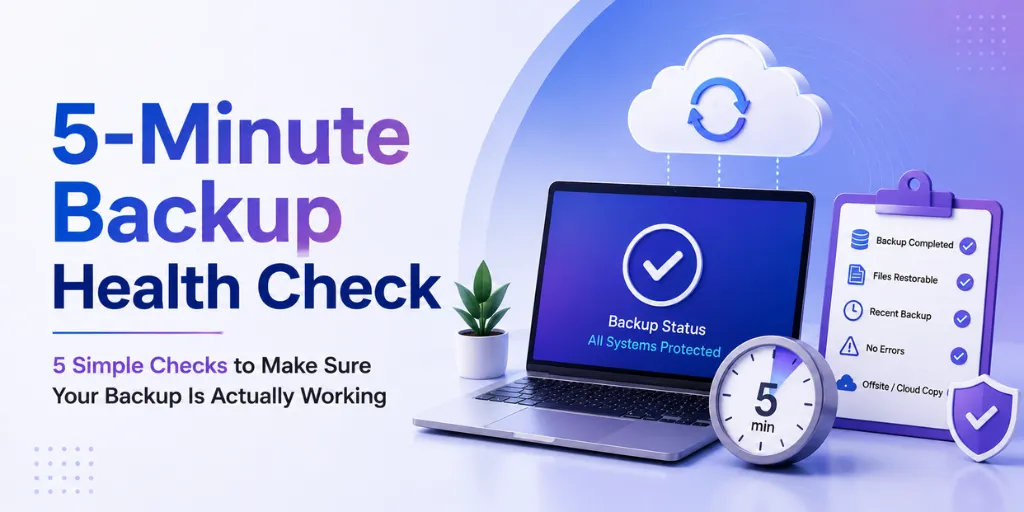
No setup, no downloads — just five things you can check on your phone or laptop right now to confirm your backup is actually working. Takes less time than making a cup of coffee.
There are two kinds of “my backup is working.” The first is a feeling — the software is installed, you set it up months ago, and you assume it’s fine. The second is actually verified — you’ve looked at specific, concrete signals recently enough to know, not just hope.
The gap between those two is exactly where silent failures live. A permissions change, a full storage quota, a quietly disconnected device — none of these throw a dramatic error. They just quietly stop protecting you, and the first sign is usually the day you actually need a restore and it isn’t there.
This is the exact 5-check routine we recommend to every Softyz customer — and it genuinely takes about five minutes, start to finish.
Silent
Most backup failures don’t throw an obvious error — they just quietly stop working
5
Checks, none of which require any new tools or downloads
5 min
Total time for the entire routine, done weekly
The 5-minute routine
Not “backup enabled” — the actual date and time of the last backup that fully completed. Open your backup app or dashboard and look for this specifically.
✅ Good sign
Should show: within the last 24 hours (or whatever your normal schedule is).
🚩 Red flag
Red flag: anything older than your expected schedule, or a status that says “in progress” for an unusually long time.
A full storage quota silently stops new backups on a lot of services — no dramatic error, just quiet non-backing-up.
✅ Good sign
Should show: comfortable headroom, at least 10-15% free.
🚩 Red flag
Red flag: 95%+ full, or a quota warning you’ve been ignoring.
Pick any single file, actually restore it (to a temp location if you’re worried about overwriting anything), and confirm it opens correctly.
✅ Good sign
Should show: the file restores and opens without errors.
🚩 Red flag
Red flag: the restore fails, takes unusually long, or the file won’t open — all signs the backup isn’t as healthy as it looks.
Not just your primary laptop — check that every device you expect to see in your backup dashboard is actually showing up as connected and recently synced.
✅ Good sign
Should show: every device you own listed as connected, with a recent last-seen date.
🚩 Red flag
Red flag: a device missing entirely, or showing a last-seen date from weeks ago.
Most people have at least one silent, ignored notification sitting in an app or inbox. This is the one people skip most — and where surprises hide.
✅ Good sign
Should show: zero unread failure alerts.
🚩 Red flag
Red flag: any unread “backup failed” or “couldn’t complete” notification, even an old one.
✅ The whole routine, as a checklist
✓
Check 1: Confirm the last backup completed within your expected schedule.
✓
Check 2: Confirm storage quota isn’t full or close to it.
✓
Check 3: Restore one file and confirm it opens correctly.
✓
Check 4: Confirm every device shows as connected and recently synced.
✓
Check 5: Clear and review any unread failed-backup notifications.
Do this once, and you’ll know exactly where you stand. Do it weekly — Sunday works well, hence the name — and you’ll catch almost every silent failure within days instead of discovering it the moment you actually need a restore.