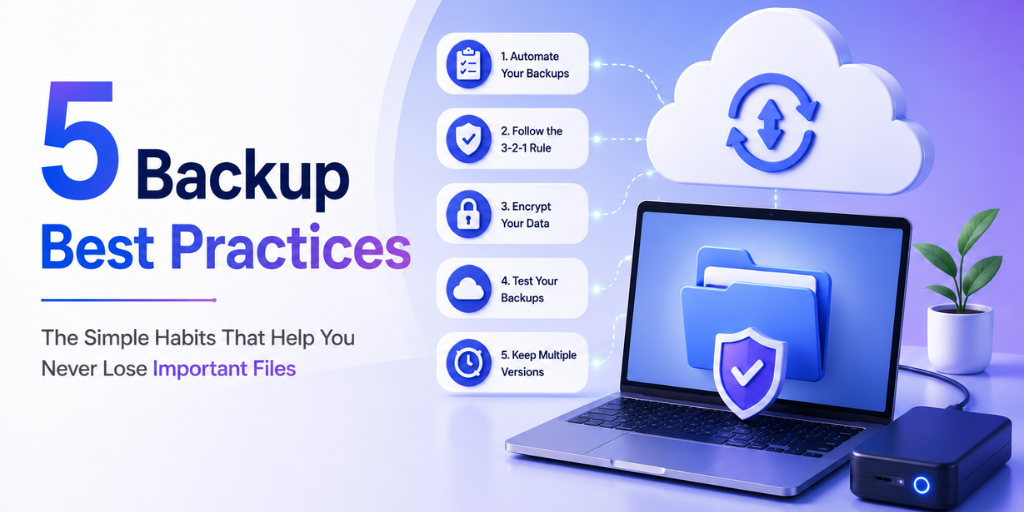
5 Backup Best Practices to Never Lose Your Files

Tips & How-To

5 Backup Habits of People Who’ve Never Lost a File

After a decade in customer support, our team has a good sense of what separates people who never lose anything from people who call in a panic. It comes down to five habits — none of them complicated, all of them consistently skipped by the people who eventually do lose something important.

It’s never about better tools.

The people who never lose data usually aren’t using fundamentally different software. They’re just consistently doing five specific things that everyone else tends to skip.

5
habits, none of them complicated, all of them commonly skipped
Based on patterns across 1,000+ recovery conversations

After guiding well over a thousand customers through data recovery situations, a clear pattern emerges: the people who never lose anything important, and the people who eventually call in a genuine panic, usually aren’t using meaningfully different tools. The difference is almost always a small set of habits — consistently applied by one group, and consistently skipped by the other.

None of these five habits are complicated. None require new software or a technical background. What they require is consistency — doing them as a matter of routine, not just when something’s already gone wrong.

5
Habits, each taking minutes, not hours
1,000+
Recovery conversations these patterns are drawn from
0
New tools required to build any of them

The 5 habits, in detail

1
Habit
They test restores, not just backups
A completed backup job tells you data was copied somewhere. It doesn’t tell you that data can actually be retrieved and opened correctly. The only way to know for certain is to actually pull a file back and confirm it works — and people who never lose data do this periodically, not just when they’re already in a crisis.
✅ What it looks like
Pick any single file monthly, restore it (to a separate location if you’re cautious), and confirm it opens without errors. This takes under two minutes and is the single most reliable way to catch a broken backup before you actually need it.
🚩 Without this habit
Assuming a green checkmark or “backup complete” notification means the data is genuinely recoverable, without ever actually testing that assumption.
 
2
Habit
They know their storage quota before it becomes a problem
A full storage quota is one of the most common, and most silent, causes of backup failure. Many services simply stop backing up new files once the quota is hit — without a dramatic error message, just quiet non-protection going forward.
✅ What it looks like
Check your quota usage roughly monthly, and set a personal threshold (say, 85% full) as your trigger to either clean up old files or upgrade your plan — before the quota actually fills completely.
🚩 Without this habit
Ignoring quota warnings, or not knowing where to even check quota usage, until a backup silently stops working and nobody notices for weeks.
 
3
Habit
They don’t rely on memory for what’s included in backup scope
It’s extremely common for someone to assume “everything important” is being backed up, without ever having actually confirmed which folders, drives, or file types are included in their backup’s configured scope. New folders, external drives, and files outside the default scope are easy to add without ever getting covered.
✅ What it looks like
Once a quarter, open your backup tool’s settings and actually look at the configured folder list — not from memory, but the literal current configuration — and add anything that’s been created since you last checked.
🚩 Without this habit
Assuming a new project folder, an external drive, or a downloads folder is “probably covered,” without ever actually confirming it against the tool’s real configuration.
 
4
Habit
They treat backup notifications as urgent, not spam
A “backup failed” or “couldn’t complete” notification is one of the few alerts that genuinely deserves same-day attention, but it’s also one of the easiest to mentally file under “deal with later” alongside routine app notifications.
✅ What it looks like
Set backup failure alerts to arrive via a channel you actually check promptly (email plus a mobile push notification, not just an in-app banner you might not open for days), and treat any such alert as a same-day action item.
🚩 Without this habit
Letting failure notifications pile up unread for days or weeks, treating them the same as any other routine app notification.
 
5
Habit
They always have an answer to “what if my laptop dies today”
This is less a specific action and more a standing mental habit: at any given moment, someone with strong backup habits could answer, with confidence, exactly what they’d do and how quickly they’d be back to normal if their primary device failed right now.
✅ What it looks like
Periodically ask yourself this question directly, and if the honest answer is “I’m not sure,” treat that uncertainty itself as the signal to go check your setup, rather than waiting for an actual failure to find out.
🚩 Without this habit
Never having asked the question at all, and discovering the answer only in the middle of an actual device failure, under pressure, with no time to plan.

Score yourself honestly

Before moving on, take an honest inventory: how many of these five habits do you actually have right now, not how many you intend to build eventually?

0–1
High risk. Start with habit #1 (testing a restore) this week — it’s the single highest-leverage change you can make.
2–3
Reasonable foundation, but real gaps remain. Focus on whichever habit feels most unfamiliar to you.
4–5
Strong position. You’re doing more than most people we talk to, even in a support context.
✅ The whole list, as a quick checklist
✓
Habit 1: Test a restore periodically, not just trust that backups completed.
✓
Habit 2: Know your storage quota before it becomes a silent problem.
✓
Habit 3: Actually confirm backup scope, rather than relying on memory or assumption.
✓
Habit 4: Treat backup failure notifications as same-day priority, not routine noise.
✓
Habit 5: Always have a clear, confident answer to “what if my primary device died today.”

Frequently asked questions

Q: Do I need to do all 5 habits perfectly to be “safe”?
No single habit is the whole answer, but together they cover almost every realistic gap. Even doing 3 of the 5 consistently puts you well ahead of the typical setup we see.
Q: How often should I actually test a restore?
Monthly is a reasonable cadence for most people. If your data changes constantly (active project files, a business’s shared drives), consider testing more frequently — the cost is a couple of minutes, and the value compounds every time it catches a real issue.
Q: What’s the fastest way to build habit #3 — knowing backup scope?
Set a recurring calendar reminder, quarterly, to literally open your backup tool’s folder configuration and read through it. This takes under five minutes and catches scope drift before it becomes a real gap.
Q: Is there a way to make habit #5 less abstract?
Yes — instead of just thinking about it, actually write down a one-paragraph answer: which backup you’d restore from, roughly how long it would take, and what you’d do in the meantime. Having it written down removes the uncertainty entirely.

None of this requires a personality change or a technical background — just five specific, low-effort habits, done consistently rather than only after something’s already gone wrong. Pick the one you’re weakest on and start there this week.

AM
Anita Murthy
VP Customer Success at Softyz Inc. Anita has personally guided over 1,000 customers through data recovery, and these five habits are distilled directly from the patterns she’s observed separating smooth recoveries from genuine crises.