
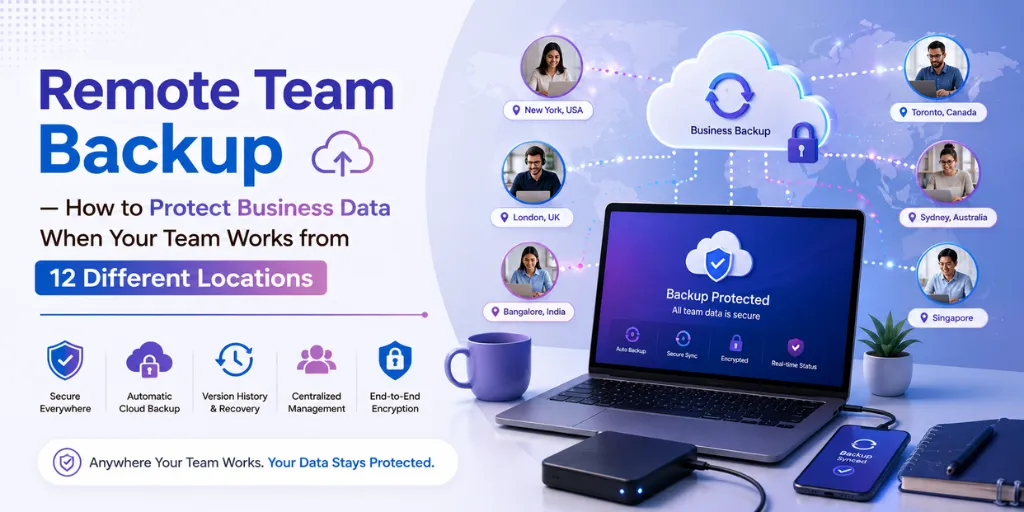
Remote Team Backup — How to Protect Business Data When Your Team Works from 12 Different Locations
Remote and hybrid teams create a data protection problem that traditional IT models were never designed for: dozens of devices, different platforms, no central visibility, and critical business files scattered across personal cloud accounts. This guide covers how forward-thinking remote-first teams structure backup — and the approaches that don’t work.
Your team is everywhere. Is your data protected everywhere too?
Remote work didn’t just change where people work — it fundamentally changed where business data lives, who’s responsible for protecting it, and how you verify that protection is actually working.
When everyone worked in the same office, the IT setup was straightforward and easy to manage: a few servers, a NAS, and scheduled overnight support. When the team expanded to multiple locations, that model failed completely. Suddenly, the critical data wasn’t just on the office server—it was in the photos taken by the person who had been working on-site.
The data protection problem of remote work is not that people don’t have backup. It’s that nobody knows whether the backup is actually working, covering the right files, and running consistently across every device — across every location — every day. That’s the problem this article addresses.
Why remote work broke traditional backup IT models
Traditional office backup was based on a simple premise: all essential data resides on devices connected to the office network. Backups run overnight across the network, copying data to a local NAS or server, and the IT team can monitor everything from a single console.
Remote work invalidated every part of that model:
- Data is no longer where IT can see it — It is available on personal home networks, in coffee shops and airport lounges, and on any platform of the employee’s choice.
- The “backup tonight when you’re on the network” approach doesn’t work — When people are not on the office network, many traditional backup tools simply do not work.
- IT visibility is gone — There is no central console to show whether every remote device has been backed up today. You rely on employees to provide the information themselves, which does not work at scale.
- Platform diversity exploded — Remote teams typically use Windows, Mac, and sometimes Linux simultaneously. Any backup solution that does not support all three falls short.
The 4 data protection gaps specific to remote teams
In an office, IT can walk to a desk and check. Remotely, you’re relying on employees to tell you their backup is working — which they will, because they believe it is, even when it isn’t.
Most common scenario: employee says “yes I’m backed up.” Their last successful backup was 3 weeks ago because iCloud storage filled up. Neither they nor IT knows.
The default backup scope covers Documents and maybe Desktop. But remote workers scatter files everywhere — Downloads, desktop, custom project folders, app-specific directories. Nobody audits what each employee’s backup actually covers.
Result: a critical client file that was in ~/Downloads rather than ~/Documents is permanently lost when the device fails.
Telling remote employees to “make sure your device is backed up” is the same as telling them to “make sure your laptop is secure.” Some do it rigorously. Most do it inconsistently. A few never do it.
The problem surfaces when a device fails — not before. By then, the employee who never properly set up backup is gone and the data is gone with them.
In BYOD environments, one team member might have Time Machine, another might have iCloud, a third might have nothing. When business files are on a personal device with personal (inadequate) backup, the business has no control and no visibility.
BYOD devices create the highest-risk backup situations in remote teams — and are also the hardest to monitor without the employee’s cooperation.
The 3 approaches to remote team backup — and what each actually delivers
- 3–4 team members set up backup correctly and run it diligently
- 2–3 set something up but don’t verify it’s working
- 1–2 intend to set it up and never do
- IT has no visibility into which group anyone is in
- Data loss reveals the truth — usually too late
- Works reasonably well when devices are on VPN
- Centralised visibility for IT
- Good for teams that are primarily office-based with occasional remote
- Familiar model for IT teams who managed on-premise infrastructure
- Each device runs a lightweight backup agent locally
- Backup goes directly to cloud — no VPN or office network needed
- IT sees every device’s status in a central admin dashboard
- Alerts fire automatically if any device stops backing up
- Works on any network, any location, any time
What a Softyz Teams remote backup dashboard actually looks like
The ‘Nadia Alert’ visible on the dashboard clearly illustrates why centralized visibility is essential. Without the team dashboard, no one would realize that Nadia’s device hasn’t been backed up for the past three days until a problem actually occurred. With the dashboard, however, the admin can contact Nadia today—before any data loss happens—and resolve the issue causing the backup failure.
How to set up remote team backup in Softyz — step by step
Upgrade to Softyz Business — enables Teams features
Teams dashboard, shared workspaces, role-based permissions, and team backup alerts are all Business and Enterprise plan features. Once upgraded, the Teams tab appears in your Web Manager sidebar immediately — no migration or technical setup required.
Invite every team member and assign roles
Teams → New Workspace → Invite Members → enter email addresses. Assign roles: Admin (IT lead), Editor (senior team members who share files), Contributor or Viewer (general team). Each person receives a setup email — they install Softyz on their device and sign in with the team account.
Send every new team member the backup onboarding checklist
When someone installs Softyz, their device appears in the Team dashboard automatically. But the backup scope is still what the employee configures. Send each new team member a simple onboarding document specifying the required folders to add — Documents, Downloads, Desktop, and any team-specific project folders.
Configure backup alerts — set the interval that triggers a notification
Teams Dashboard → Settings → Alerts → Backup Monitoring. Set the interval: 24 hours is a reasonable default (any device that hasn’t backed up in 24 hours triggers an alert). For teams handling particularly sensitive or actively updated data, 6–12 hours is better. All alerts go to the designated admin email.
Verify every device appears in the dashboard and shows a recent backup
Once all team members have installed Softyz, open the Teams dashboard and confirm every device shows a green status and a recent backup timestamp. Any device showing amber (backup delayed) or red (alert triggered) should be followed up with the team member to resolve the issue.
Schedule a monthly backup health review
Add a recurring calendar event for 10 minutes each month: open the Teams dashboard, check every device’s backup history for the past 30 days, verify no persistent gaps, and follow up with any team member whose device shows irregular backup patterns. This is the difference between managing backup proactively and discovering gaps in a crisis.
The remote team backup policy template
Every remote team should have a written backup policy—even if it is very simple. It serves as both a practical document (informing team members about what is required) and a compliance document (demonstrating to auditors that you have established backup requirements). Here is a template you can customize to suit your needs:
| Policy element | Requirement | How to verify |
|---|---|---|
| Backup tool | All team devices must run Softyz with the company account credentials | Device visible in Teams dashboard |
| Required backup scope | Desktop, Documents, Downloads, and all project/client folders must be in backup scope | Folder list visible in device settings |
| Backup frequency | Real-time continuous backup · No scheduled daily/weekly backup acceptable | Frequency setting visible in Softyz preferences |
| Maximum gap allowed | No device should go more than 24 hours without a successful backup | Alert fires automatically if exceeded |
| New device setup | Softyz must be installed and configured within 48 hours of a new device being issued | Device appears in Teams dashboard within 48 hrs |
| Device departure | IT admin removes departing employee’s device access on the last working day | Admin action in Teams → Members → Remove |
| Restore testing | Each team member tests a file restore from their backup quarterly | Restore record generated in Softyz Web Manager |
What to do when a remote team member’s device fails
With Softyz Teams, it is easy to respond when a remote team member’s device malfunctions:
- The team member opens app.softyzinc.com on any other device — A phone, a borrowed laptop, or any device with a browser—and all their files become instantly available for use. They can continue working on their most important files even while waiting for a new device.
- The admin can verify from the Teams dashboard that the device’s last backup was recent and included all the essential folders—making it clear exactly what could be recovered before the replacement device arrived.
- On the replacement device, A team member installs Softyz, signs in with their company credentials, and restores their files. Once the backup resumes, the device automatically appears on the Teams dashboard.
“We onboard a new team member every few weeks. Before Softyz Teams, I’d find out a device wasn’t backed up when it failed. Now I find out the same day someone’s backup stops — before anything goes wrong. That shift from reactive to proactive is the actual value of the dashboard.” — Rohan Kapoor, Co-founder & CPO, Softyz Inc.